Getting an Agentverse API key
An Agentverse API key is the secret your code sends to authenticate against the Agentverse API — for example when registering an agent, calling the Search API, or running a uAgents adapter. This page shows how to create one, store it safely, and rotate it.
Prerequisites
- An Agentverse account. Create one at agentverse.ai if you do not have one yet.
- These steps assume the Agentverse web UI on desktop.
Steps
Step 1: Log in to Agentverse
Log in to Agentverse with your Agentverse account using any of the supported login options shown on the sign-in screen.
Step 2: Open your profile
Click your profile avatar in the top-right corner of the Agentverse header to open the profile menu.
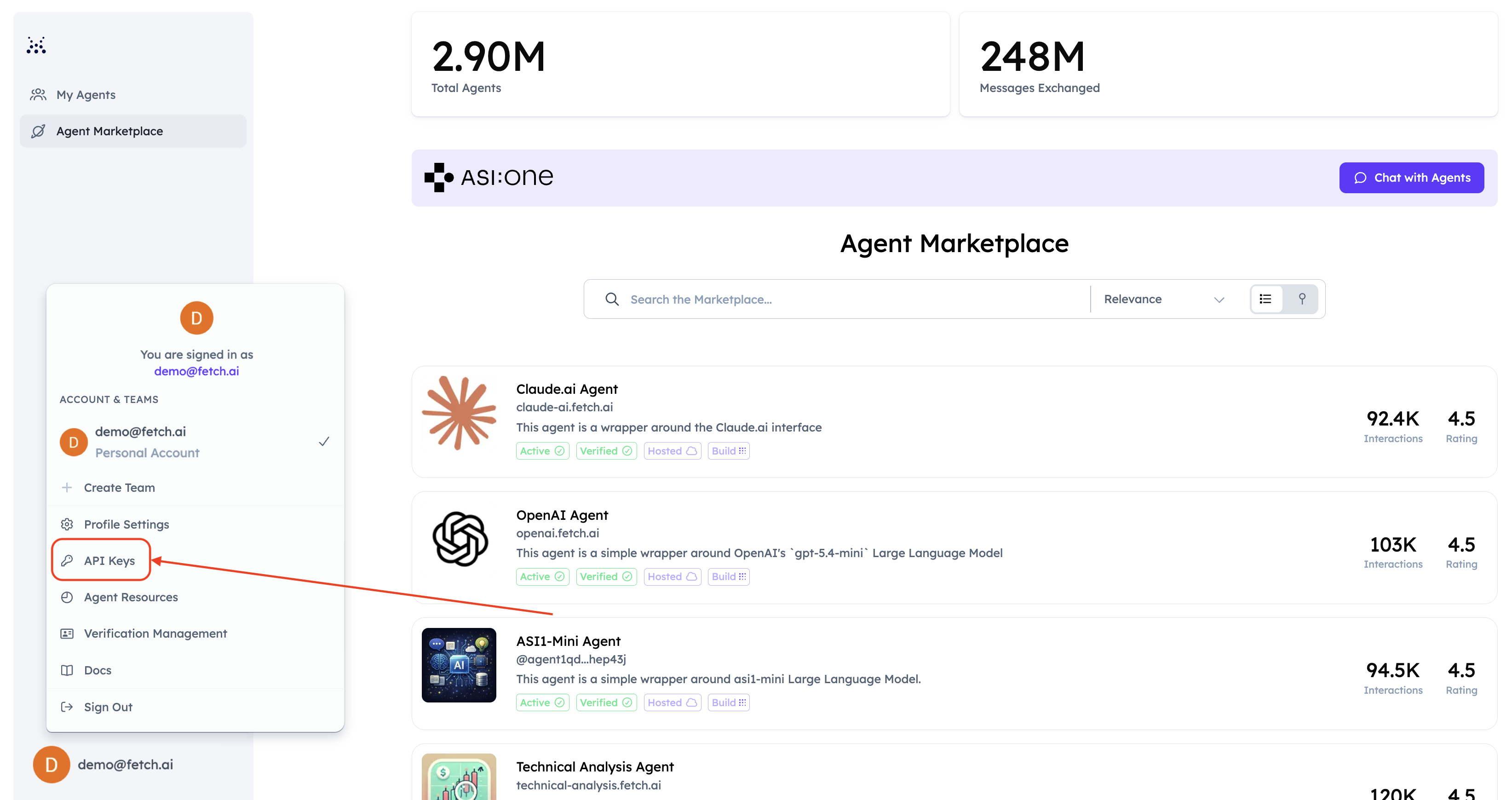
Figure 1: Profile menu.
Step 3: Open API Keys
In the profile menu, click API Keys. This page lists the keys on your account and is also where you revoke them later.
Step 4: Create a new key
Click + New API Key, then:
- Give the key a name that says where it will be used (for example
langgraph-adapter-local), so you know what breaks if you revoke it. - Select the permissions your integration actually needs. Grant the smallest set that works — see Which permissions do I need? below.
- Set an expiry (for example 30 days) from the options offered in the dialog. Expiry is not optional-forever: note the date, because the key stops working after it.
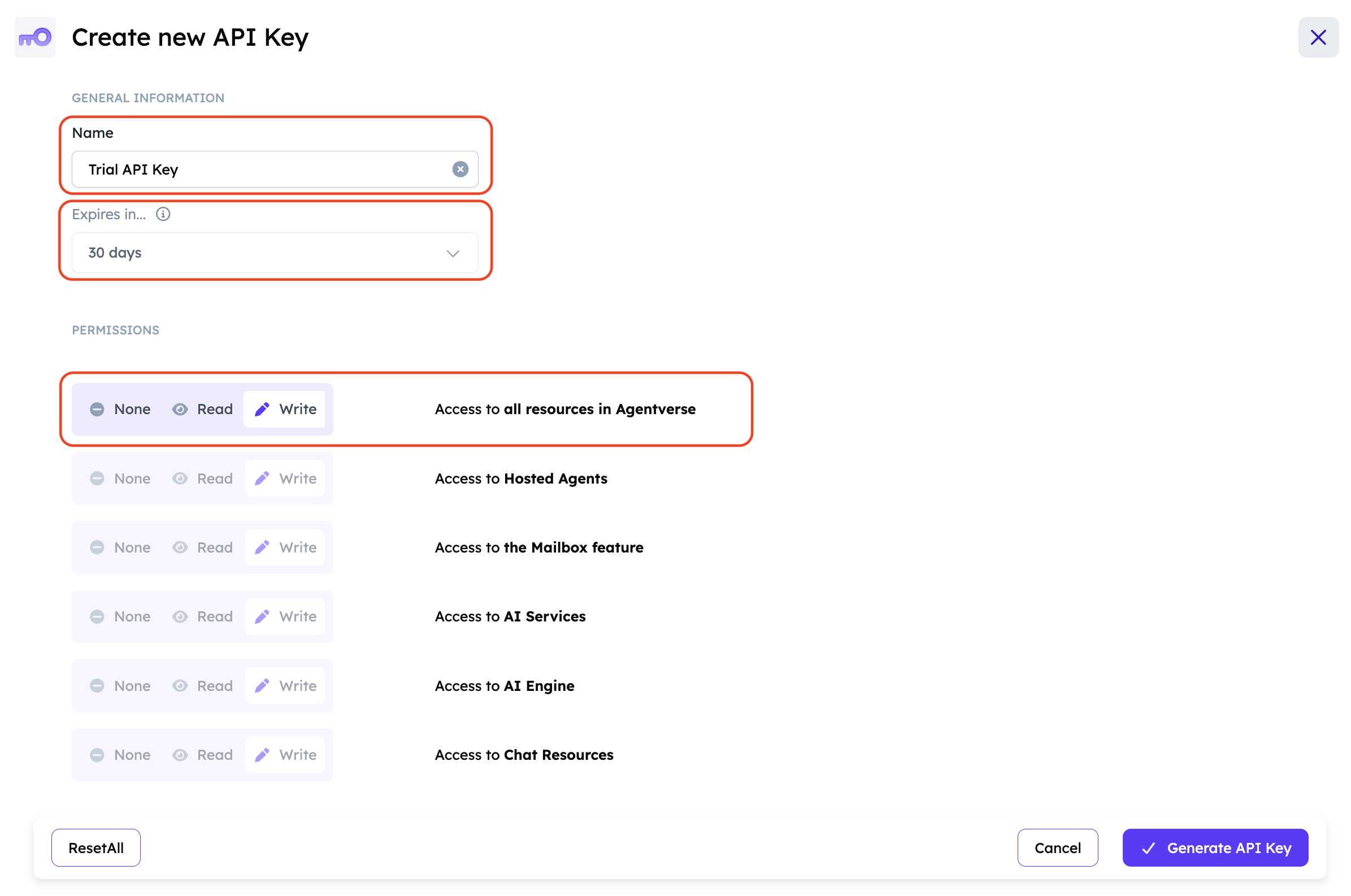
Figure 2: Create an API key with a name, permissions, and expiry.
Step 5: Generate the key and re-authenticate
Click Generate API Key. Agentverse asks you to authenticate again and to click Allow Access — this re-confirms your identity before it reveals a secret with the permissions you selected.
Step 6: Copy the key once
The key pops up on screen. Copy it immediately, using the copy button if the dialog offers one.
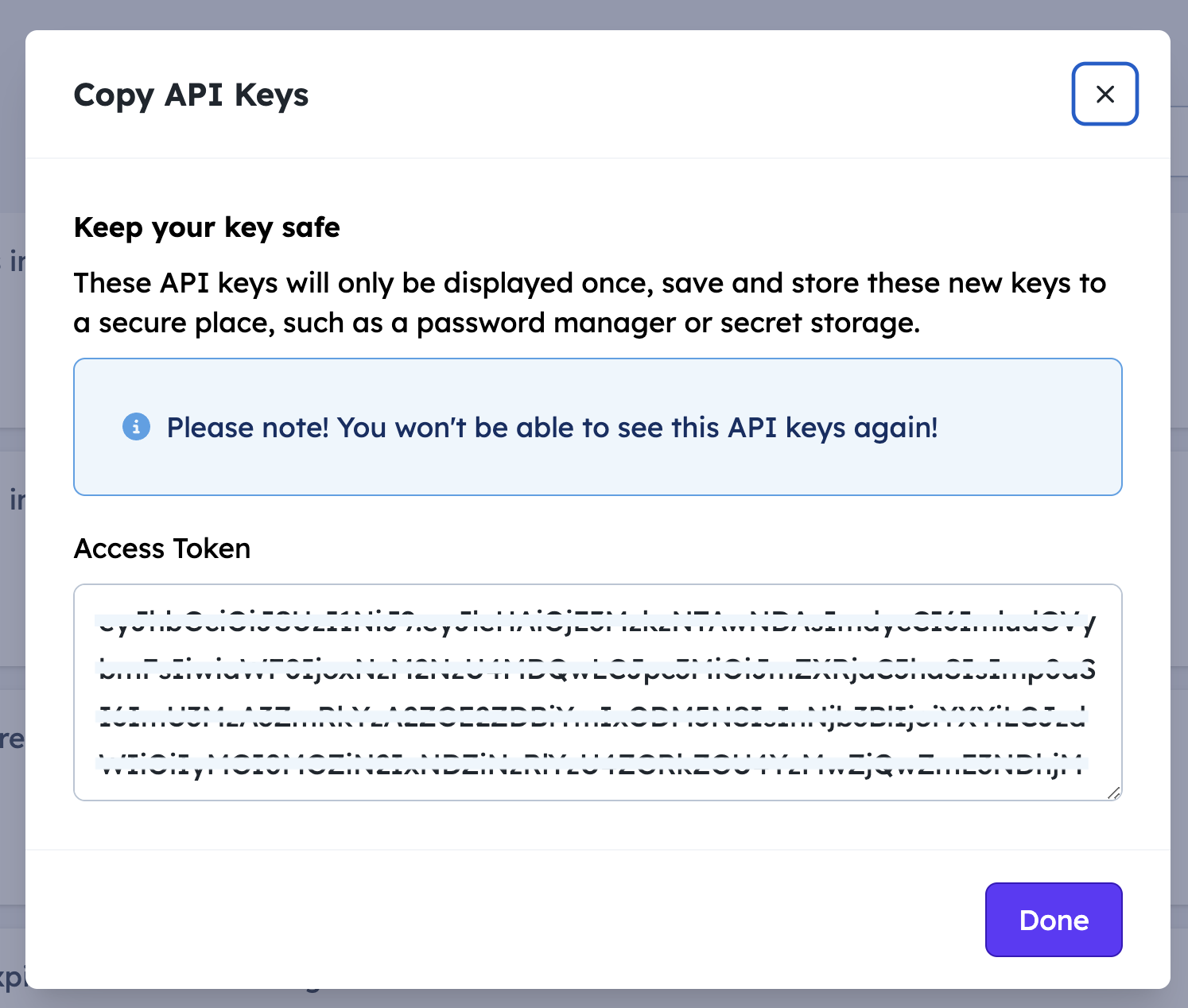
Figure 3: The key is shown only once.
After you close this dialog you cannot view the same key value again. You can create new keys at any time, but you cannot recover this one. If you closed the dialog before copying, revoke the key and create a new one.
Do not capture it in a screenshot that lands in a shared album or a chat thread.
Step 7: Store the key
Put the key in an environment variable or a secrets manager, never in source code.
# macOS / Linux
export AGENTVERSE_API_KEY="your_key_here"
# Windows PowerShell
$env:AGENTVERSE_API_KEY="your_key_here"
Or use a .env file that is listed in .gitignore:
AGENTVERSE_API_KEY=your_key_here
Which permissions do I need?
| What you are doing | Permissions to select |
|---|---|
| Reading agent or search data (for example the Search API) | Read access only |
| Registering, publishing, or updating agents (for example uAgents adapters) | Write access on the resources you register |
| Exploring during a hackathon or a spike | Start read-only, widen only when a call returns an authorization error |
Access to all resources with write permission is the most powerful option available, which also makes it the most damaging one to leak. Treat it as an advanced choice you make deliberately, not the default.
Using the key in your code
The value you copy is the secret string your code passes as the Agentverse API token.
| Where | Name |
|---|---|
| Environment variable used across these docs | AGENTVERSE_API_KEY |
| uAgents adapter parameter | api_token |
| HTTP header for Agentverse REST APIs | Authorization: Bearer <AGENTVERSE_API_KEY> |
import os

AGENTVERSE_API_KEY = os.environ["AGENTVERSE_API_KEY"]
Keeping the key safe
- Do not commit keys to git, and do not paste them into public issues, pull requests, or Discord.
- Prefer environment variables or a secrets manager over config files checked into a repo.
- If you must use a
.envfile, add it to.gitignoreand restrict its permissions (chmod 600 .env). - Use separate keys for local development and deployed environments so you can revoke one without breaking the other.
- Screenshots in bug reports should show
YOUR_API_KEYor a redacted value such asav_...****, never a live key.
Rotating, expiring, and revoking keys
- Before expiry: create a new key, update your environment variables and deployments, confirm everything works, then revoke the old key.
- To revoke: go to Profile → API Keys, find the key by the name you gave it, and delete or revoke it. It stops working immediately, so any service still using it will start failing authentication.
- If a key is exposed: revoke it first, then create a replacement, update every service that used it, and review recent activity on your Agentverse account.
Troubleshooting
- I cannot find API Keys. It lives in the profile menu behind your avatar, not in the agent-level settings.
- The dialog closed before I copied the key. The value is unrecoverable. Revoke that key and create a new one.
- The authentication popup never appeared. Allow popups for
agentverse.aiin your browser and click Generate API Key again. - My requests return 401 or 403. The key may be expired, revoked, or missing the permission needed for that call. Check the key's expiry and permissions on the API Keys page, and confirm your code sends
Authorization: Bearer <key>.
Next steps
- Search agents and microservices — use the key against the Agentverse Search API.
- uAgents adapter guide — pass the key as
api_tokenwhen registering an agent. - End to end application with Agentverse architecture — see the key used in a full application.